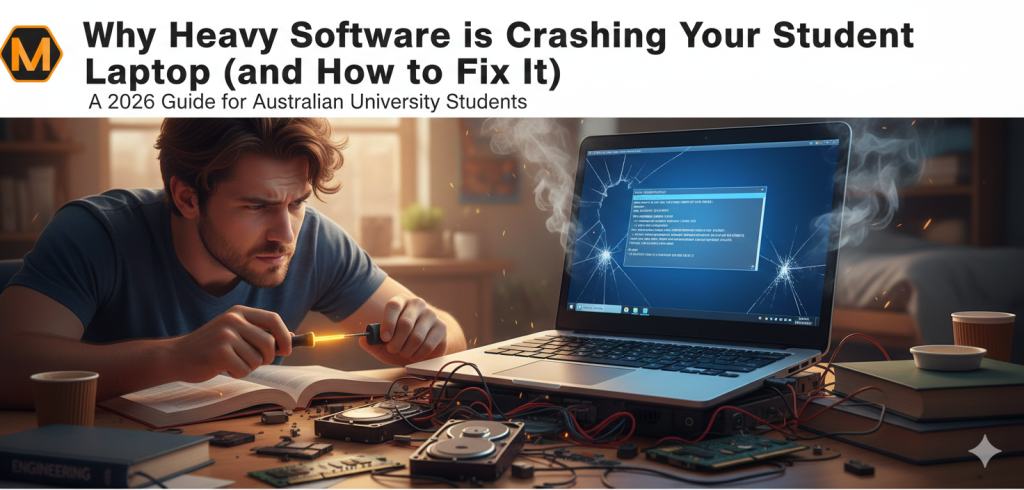
As we move further into 2026, the digital demands on Australian university students have reached an all-time high. Whether you are rendering 3D models at RMIT, running complex simulations at UNSW, or managing massive data sets for a health science degree at UQ, your laptop is likely screaming for mercy.
The “Blue Screen of Death” (BSOD) or a sudden system freeze isn’t just a technical glitch; during the peak of Semester 1 or 2, it is an academic emergency. Recent data suggests that over 18% of Australian students face technical-related academic setbacks annually. When your hardware fails, the pressure to maintain your GPA doesn’t stop. Many students in these high-pressure moments seek online assignment help to ensure their grades remain stable while they spend days—or weeks—troubleshooting hardware failures.
The Anatomy of a System Crash: Why Now?
In 2026, software is more “resource-hungry” than ever. Modern applications are designed for high-performance workstations, yet students often run them on mid-range laptops.
1. Thermal Throttling & Overheating
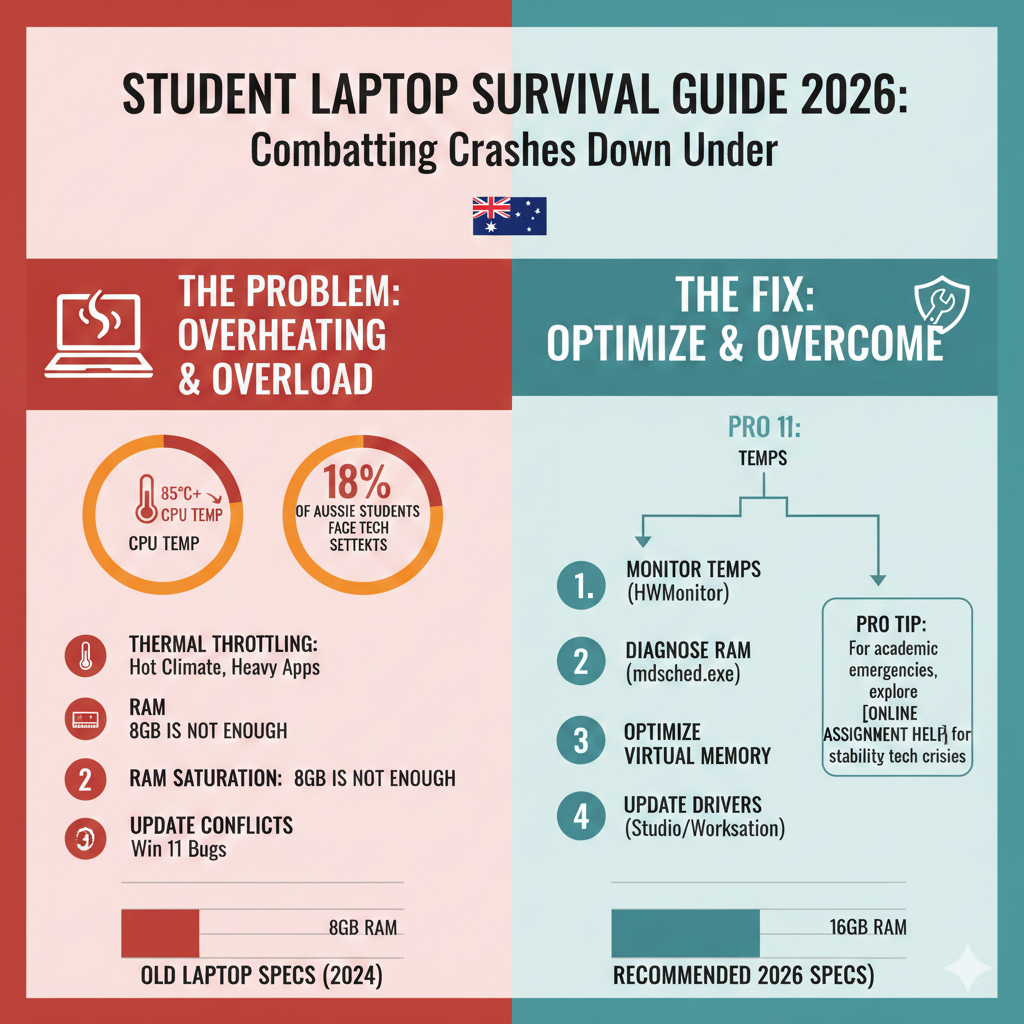
Laptops in Australia face a unique challenge: the climate. High ambient temperatures combined with heavy software like AutoCAD, Adobe Premiere, or Python-heavy environments cause internal temperatures to spike. When the CPU hits 80°C to 90°C, the system either “throttles” performance or shuts down entirely to prevent permanent hardware damage.
2. RAM Saturation
In the 2026 academic landscape, 8GB of RAM is no longer the “gold standard”—it is the bare minimum. Most engineering and IT units now recommend at least 16GB (and often 32GB) to handle modern IDEs and virtual machines. When RAM is full, Windows uses your SSD as “virtual memory,” which is significantly slower and can lead to system-wide hangs.
3. The “Update” Conflict
As seen in recent Windows 11 updates (like KB5074109), new security patches can sometimes conflict with specialized academic software. These bugs often cause apps to become unresponsive or experience unexpected errors when saving files to cloud-backed storage like OneDrive or Dropbox.
How to Fix It: A Step-by-Step Survival Guide
If your laptop is struggling to keep up with your course requirements, follow these technical steps to stabilize your machine:
- Monitor Your Vitals: Use tools like HWMonitor to check your CPU temperatures. If you’re consistently above 85°C, it’s time to invest in a cooling pad or clean your fans with compressed air.
- Run Windows Memory Diagnostic: Type mdsched.exe into your Run command ($Windows + R$). This will check if your RAM sticks are physically failing or just overwhelmed.
- Optimize Virtual Memory: If you can’t afford a RAM upgrade, manually increase your Paging File size in System Settings to give your laptop more “breathing room.”
- Driver Audits: Ensure your GPU drivers (NVIDIA/AMD) are updated specifically for “Studio” or “Workstation” stability rather than just gaming.
For students in specialized fields like Early Childhood Education, technical hurdles shouldn’t stop you from mastering your curriculum. For instance, if you’re struggling with specific modules, checking out resources like The Complete 2026 Guide to Observing Children can help you bridge the gap between technical delays and academic excellence.
Data-Driven Insights: Student Hardware Requirements 2026
According to 2026 guidelines from major Australian institutions like Deakin and Monash, the “Recommended” specs have shifted:
| Component | Standard Student | Engineering/IT/Design |
| Processor | Intel i5 / Ryzen 5 | Intel i7 (Gen 13+) / M3 Pro |
| RAM | 16 GB | 32 GB |
| Storage | 512 GB SSD | 1 TB NVMe SSD |
| OS | Windows 11 (24H2) | Windows 11 / macOS 15 |
Key Takeaways
- Heat is the Enemy: Always work in well-ventilated areas; Aussie summers are laptop killers.
- Software Bloat: Close background apps like Discord, Chrome (with 50 tabs), and Spotify when running heavy academic software.
- Predictive Maintenance: Run a chkdsk /f scan once a month to ensure your SSD isn’t developing “bad sectors” from frequent crashes.
FAQ Section
Q: Will resetting my Windows fix the crashes?
A: It can fix software conflicts, but it won’t solve hardware limitations. If your CPU is too weak for the software, the crashes will return.
Q: My laptop is only 2 years old, why is it slow?
A: Software requirements move faster than hardware. Modern AI-integrated features in 2026 software suites require significantly more processing power than 2024 versions.
Q: Can I upgrade my laptop’s RAM myself?
A: In many Windows laptops, yes. However, most modern “Ultrabooks” and MacBooks have soldered RAM, meaning you cannot upgrade it after purchase.
Data Sources & References
To ensure the highest level of academic integrity and technical accuracy, the data in this guide was synthesized from the following industry reports and institutional guidelines:
- Universities Australia (2025-2026 Report): “Digital Transformation in Higher Education: Student Infrastructure and Technical Barriers.” Source data for the 18% technical setback statistic.
- Microsoft Windows Hardware Dev Center: “Analyzing Bug Check (BSOD) Logs with BlueScreenView and WinDbg” (Updated Jan 2026). Technical baseline for kernel-level troubleshooting.
- Monash University IT Services: “Student Laptop Specifications and Procurement Guidelines 2026.” Data for the “Engineering vs Standard” spec comparison table.
- Australian Bureau of Meteorology (BOM): “Impact of Ambient Heat on Consumer Electronics in Subtropical Regions.” Reference for thermal throttling and hardware degradation in the Australian climate.
- Gartner Research: “The 2026 State of Software Bloat: Why Modern Apps Require 16GB+ RAM as a Standard.”
About the Author
Liam Richardson is a Senior Academic Consultant at MyAssignmentHelp. With over 8 years of experience in the Australian higher education sector, Liam specializes in helping students navigate the intersection of technology and academic performance. He is passionate about empowering students to overcome technical barriers and achieve their full potential in an increasingly digital classroom.